Setting up your environment
Introduction
Satania Tabako is a gimmick for VRChat avatars, so there's no guarantee it works on VR social platforms other than VRChat.
Use it in a Unity project (Unity 2022.3) that has an avatar made for VRChat in it.
Install VRChat SDK (Avatars) 3.9.0 or newer before using it.
Adding the packages you need to VCC
Satania Tabako needs Modular Avatar and lilToon.
Adding Modular Avatar to VCC
Go to Modular Avatar and you'll find a button that says Download (via VCC). Click it.
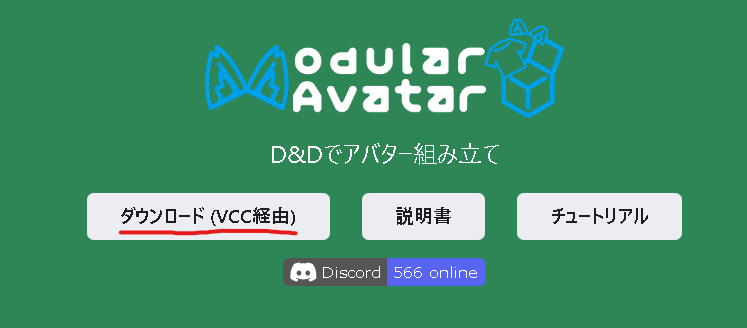
You'll be asked whether to open VCC. Click "Open CreatorCompanion".

Once you click "Open CreatorCompanion", VCC opens a window to add it. Click I Understand, Add Repository.
Heads up: if it's already been added, nothing will show up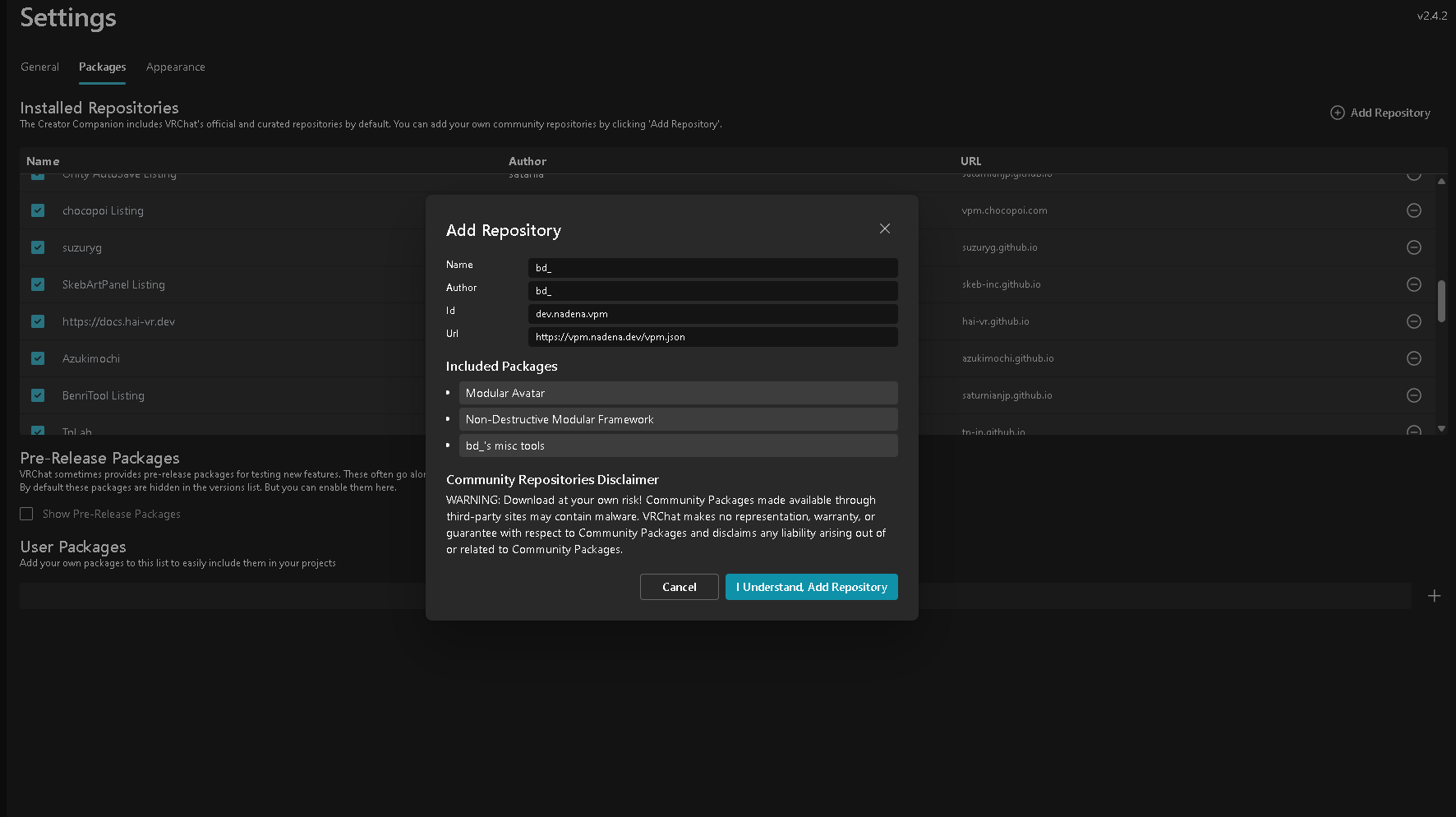
Adding lilToon to VCC
Go to lilToon and you'll find a button that says Add to VCC. Click it.
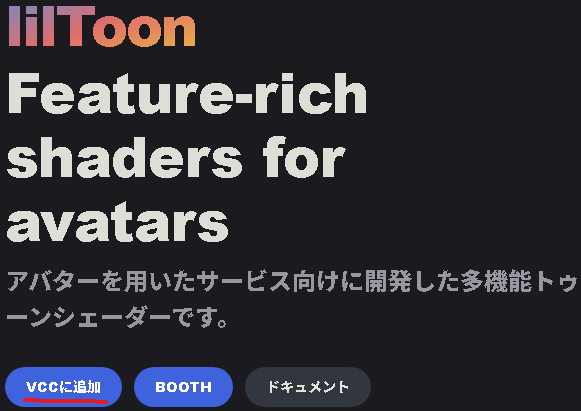
You'll be asked whether to open VCC. Click "Open CreatorCompanion".

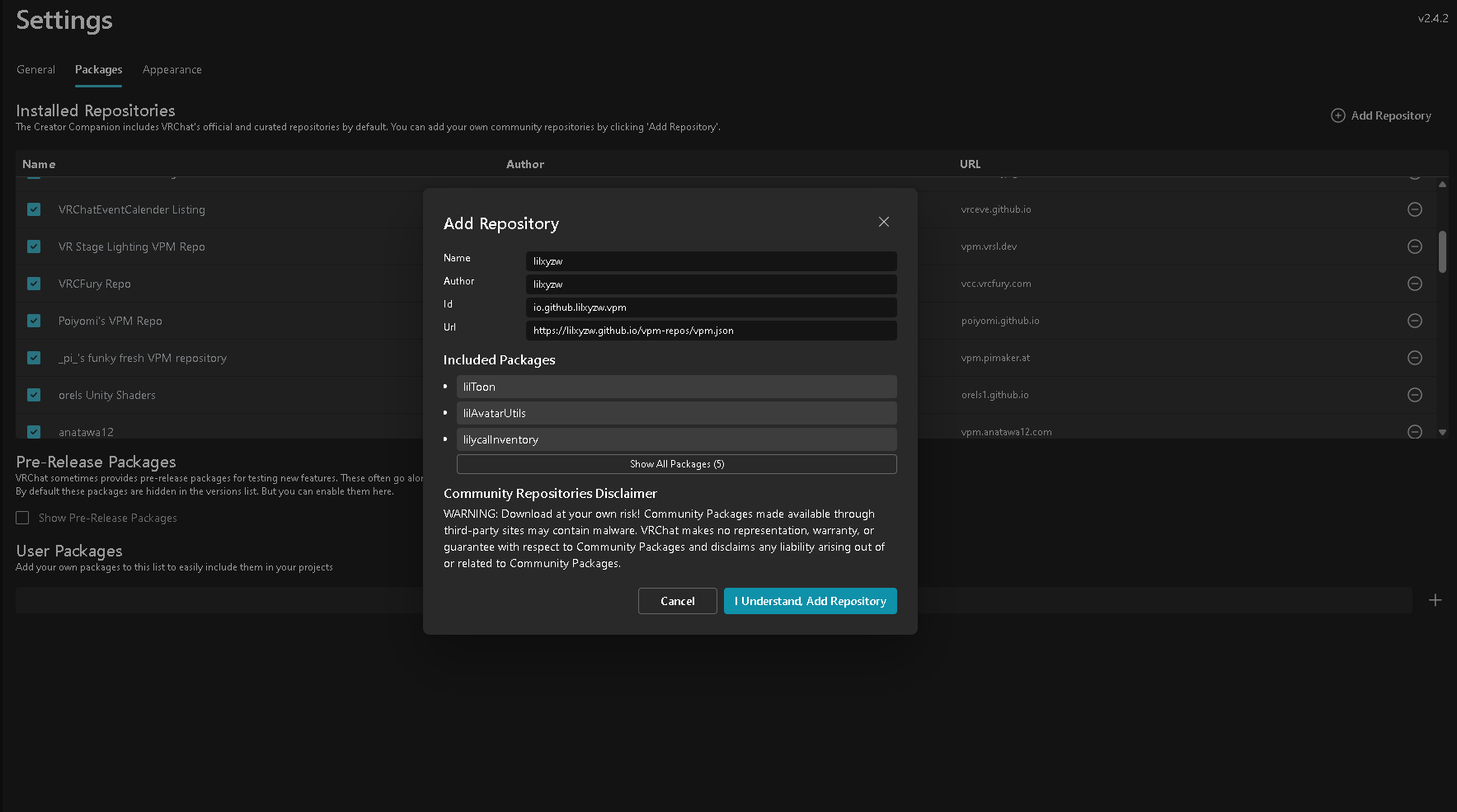
Once you click "Open CreatorCompanion", VCC opens a window to add it. Click I Understand, Add Repository.
Heads up: if it's already been added, nothing will show up
Installing MA and lilToon into Unity
In VCC or ALCOM, find the Unity project you want to put Satania Tabako in and click Manage Project.
The screenshot here is from VCC.

The Modular Avatar and lilToon you just added will be listed there. Click the [+] button to add them.
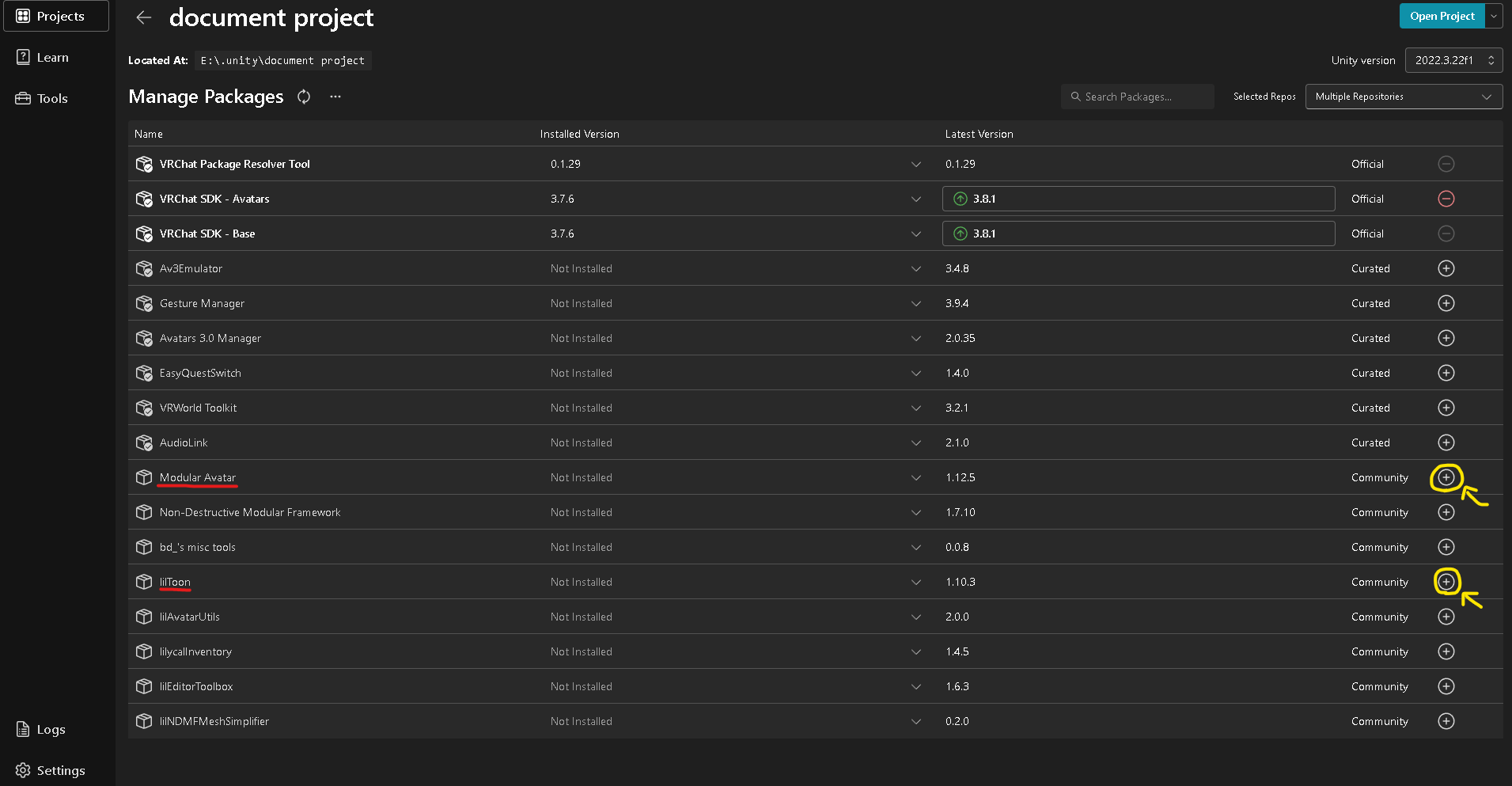
Not showing up in VCC?
Enable bd_ and lilxyzw under Selected Repos.
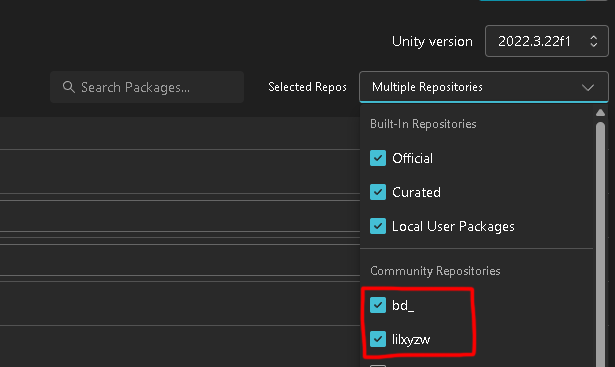
Importing Satania Tabako into your Unity project
Have the project you want to install into open while you do this.
From BOOTH, download
- Satania Tabako System v◯.◯.◯.unitypackage
- Satania Tabako Model and Textures.unitypackage
and open the files you downloaded.
The import window will show up. Import it as-is.
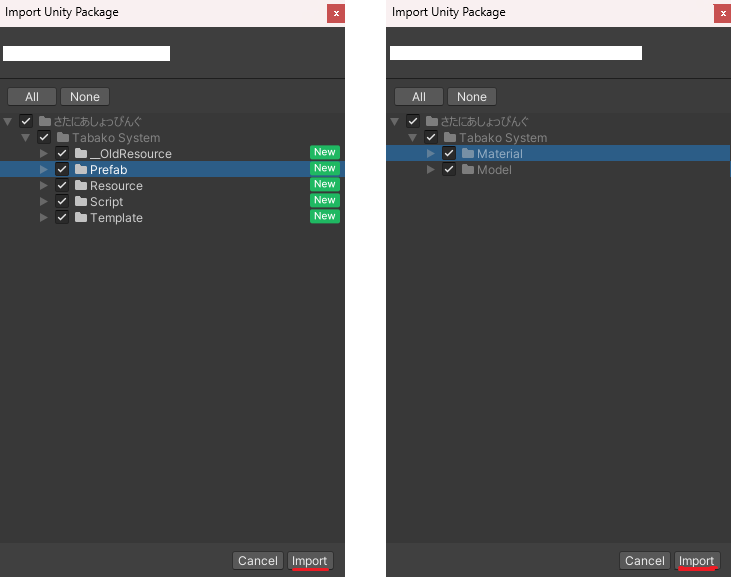
Opened the file but no import window?
Import it from Unity's top menu.

Installing on your avatar
Read Installing on a supported avatar and put it on your avatar.
If you're making an unsupported avatar compatible yourself, read Making an avatar compatible yourself.