Swapping the cigarette model
Thanks
This guide uses 3Dモデル 長さの変わるタバコ【VRChat】 (a cigarette model that changes length) for the swap. Thank you!
Before you start
If you're planning to save the swapped model as a prefab later, or to distribute or sell it, you'll need to get it ready for turning into a prefab first.
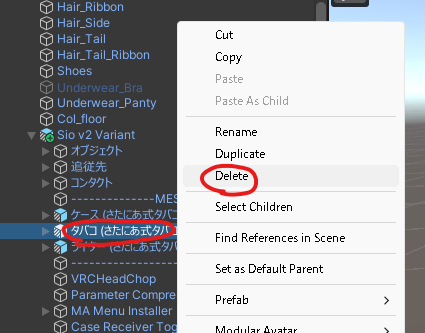
Start by deleting the タバコ (さたにあ式タバコ) (Cigarette (Satania Tabako)) that's in there by default.
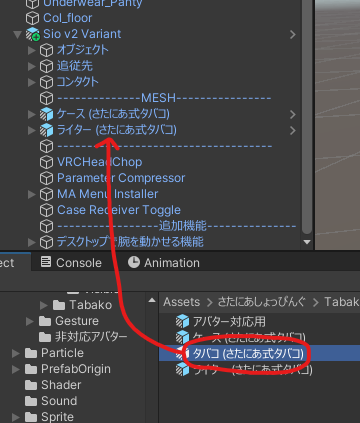
Put さたにあしょっぴんぐ (SataniaShopping) → Tabako System → Template → タバコ (さたにあ式タバコ) inside ------MESH-----.
After putting it in:
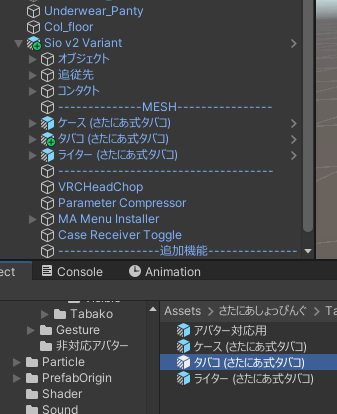
Now go ahead and swap the model.
Placing the model
Put your 3D model in the section marked ------MODEL-----.
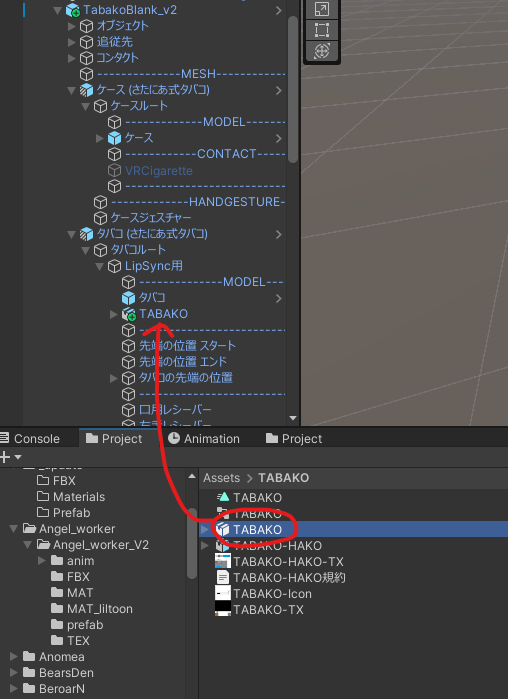
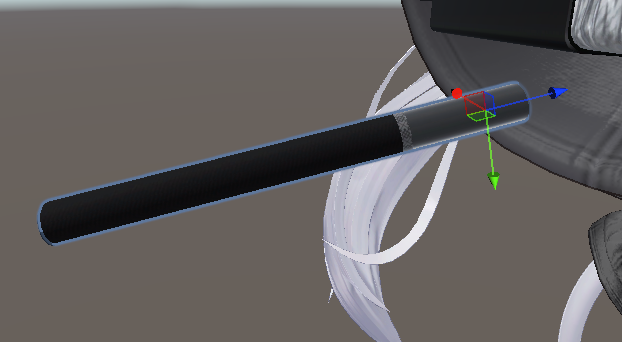
Adjust its position, rotation and size so it sits right over the original model.
Careful: if it's thicker or longer than the original Satania Tabako model, it might clip through the hand.
Before:
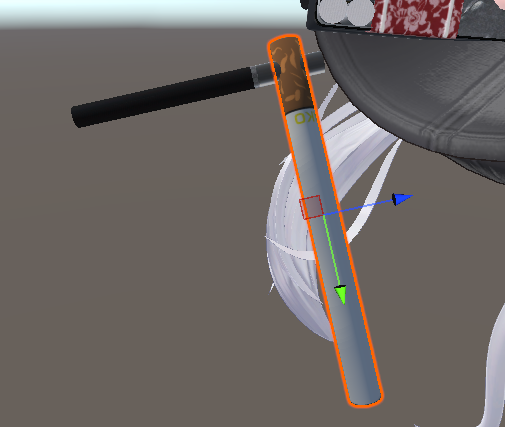
After:
Delete the original model
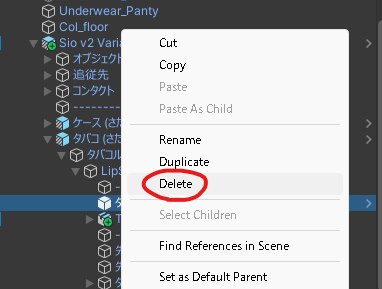
Delete the "タバコ" ("Cigarette") inside the ------MODEL----- section.
Setting up the animation that shortens the cigarette
If the model you swapped in has a blend shape that shortens the cigarette, or one that makes the tip burn, you can use them.
The cigarette model used here comes with blend shapes, so that's what we'll use.
On this model,
"Key1" is the blend shape for the tip, and
"Key2" is the one that shortens it.
Select "タバコ減るアニメーション生成用" (for generating the cigarette-shortening animation).
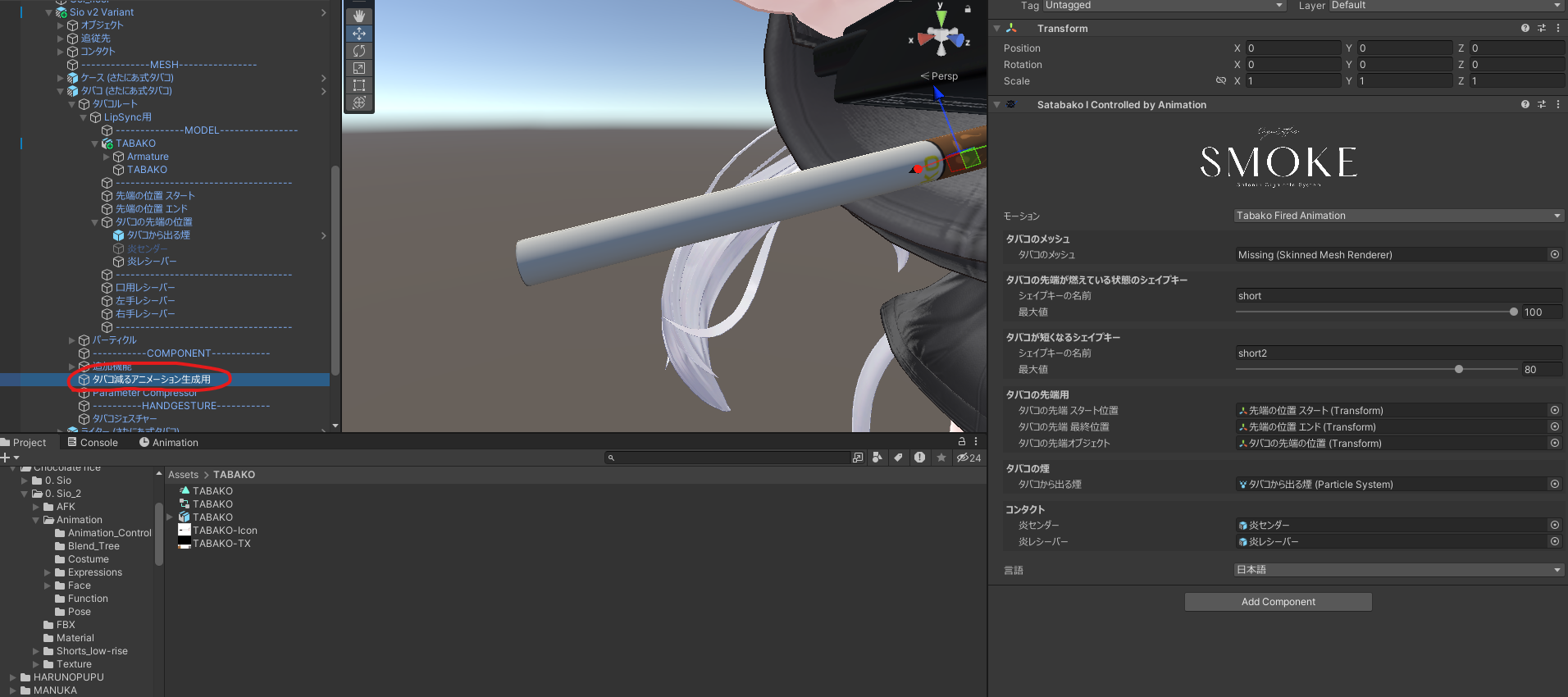
Put in the cigarette mesh.
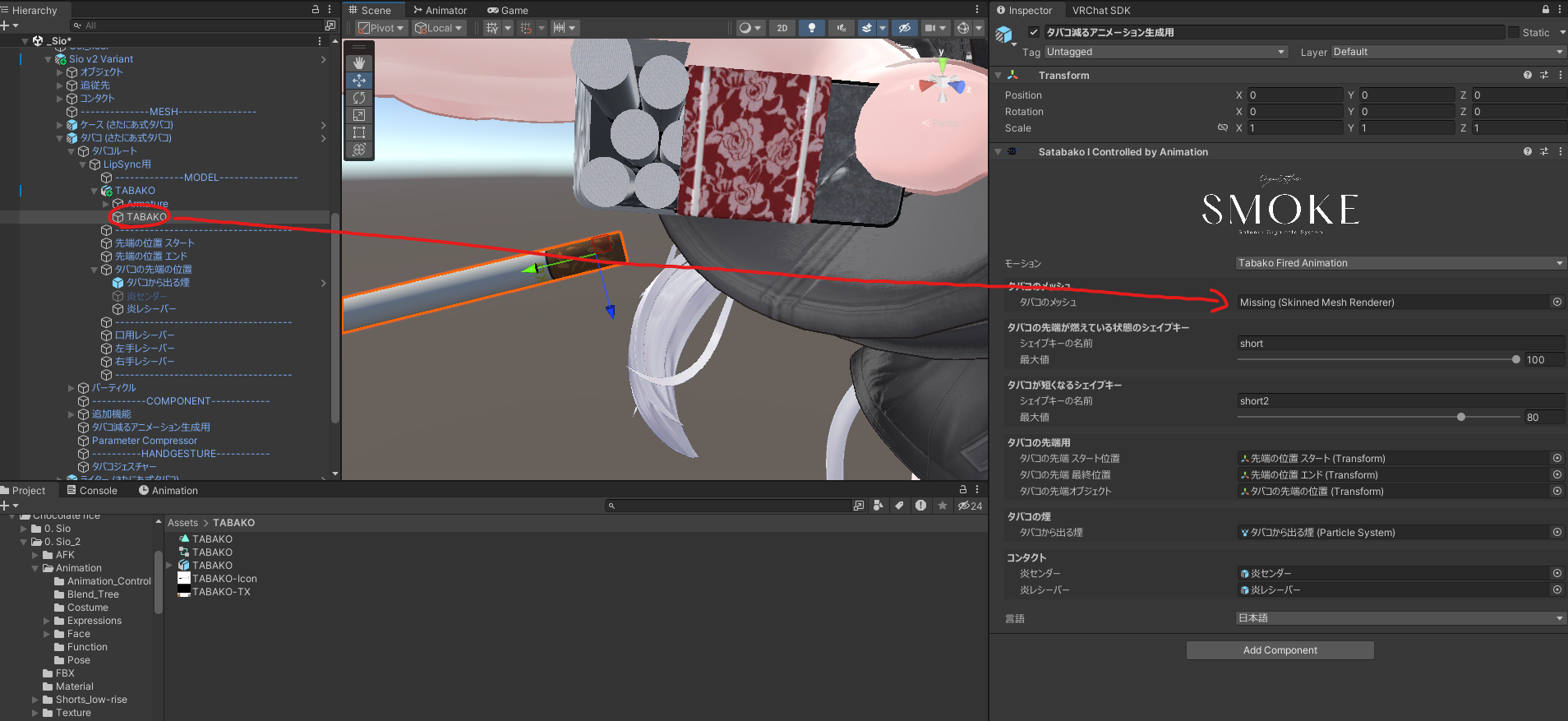
Put "Key1" in "タバコの先端が燃えている状態のシェイプキー" (blend shape for the burning tip) and "Key2" in "タバコが短くなるシェイプキー" (blend shape that shortens the cigarette).
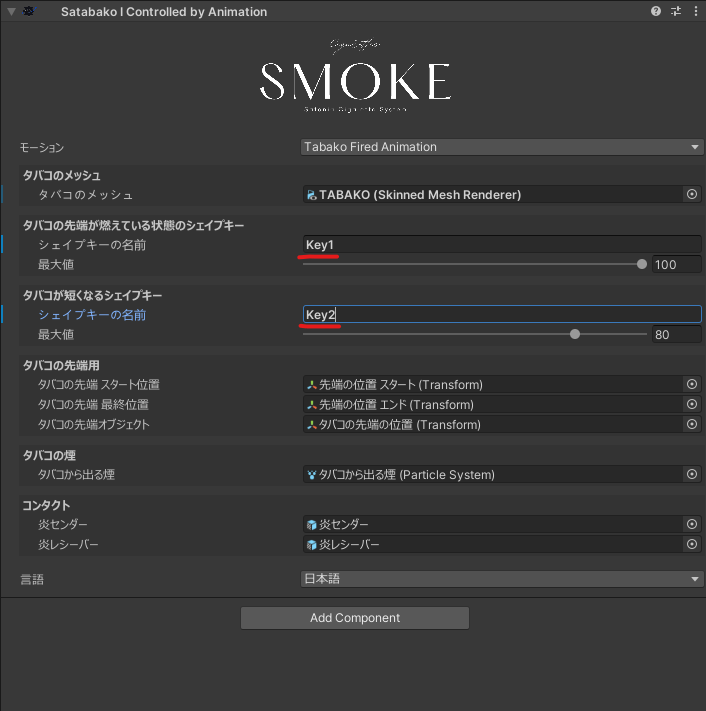
Change the max value to 100.
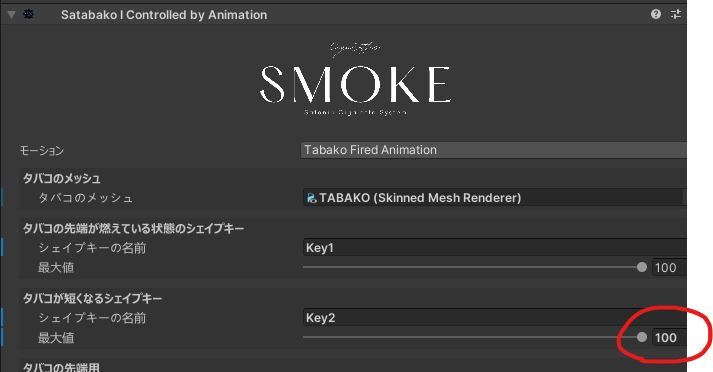
To adjust where the smoke comes from, set Key1 to 100.
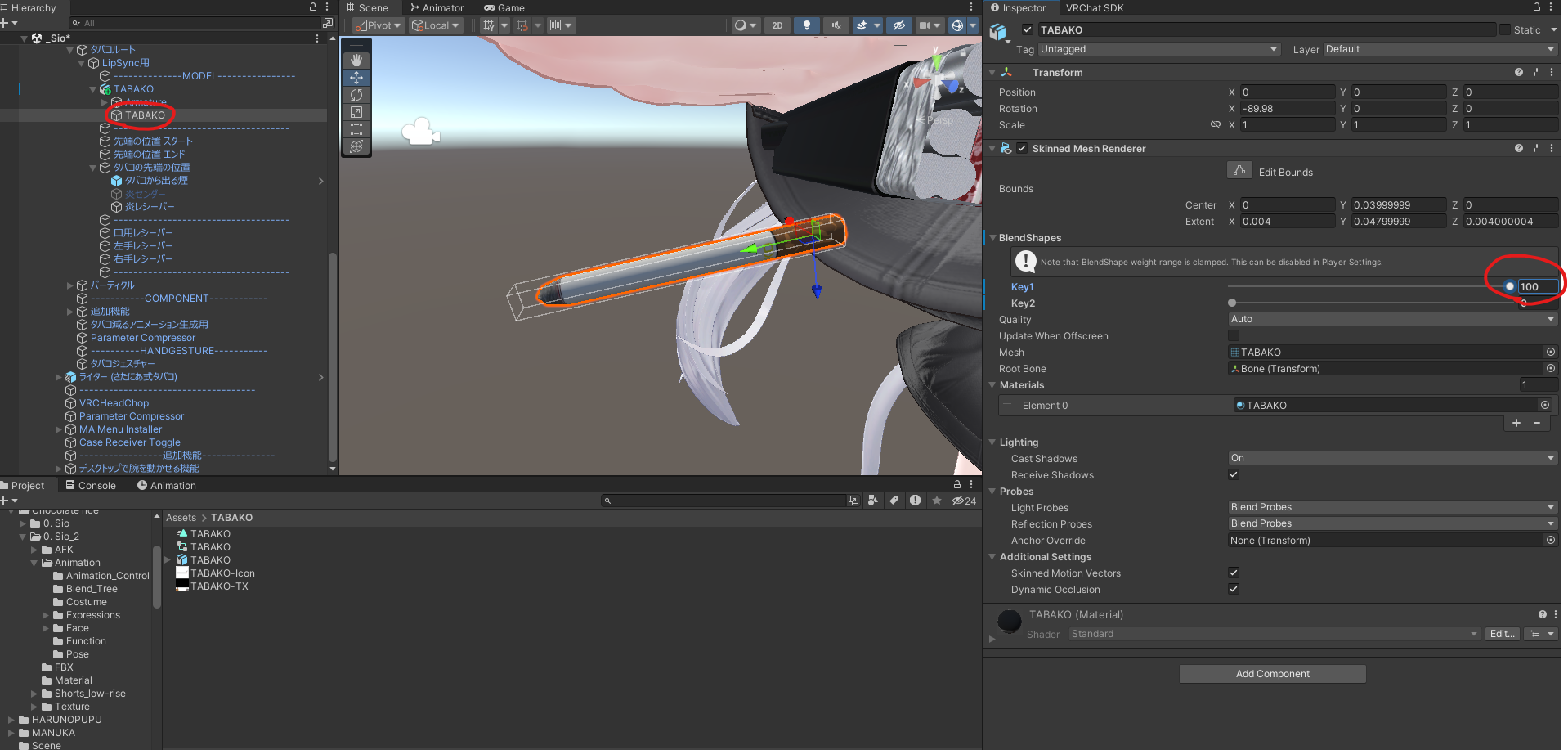
Select 先端の位置 スタート (Tip position: Start) and move it to about where it is in the image, right around the edge of the burning part.
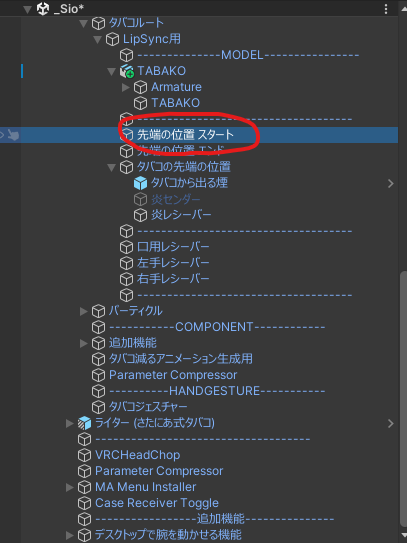
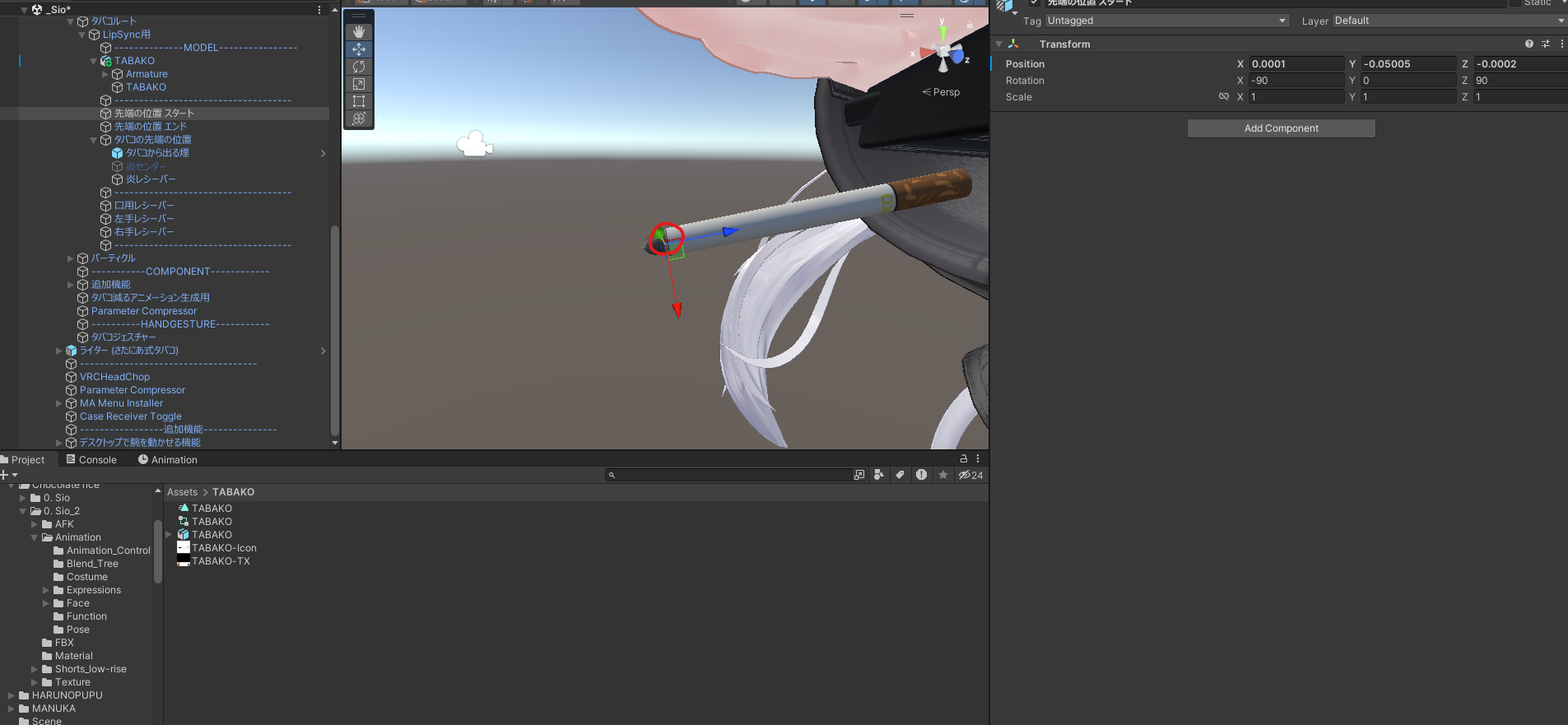
To adjust where the smoke ends up coming from, set Key2 to 100.
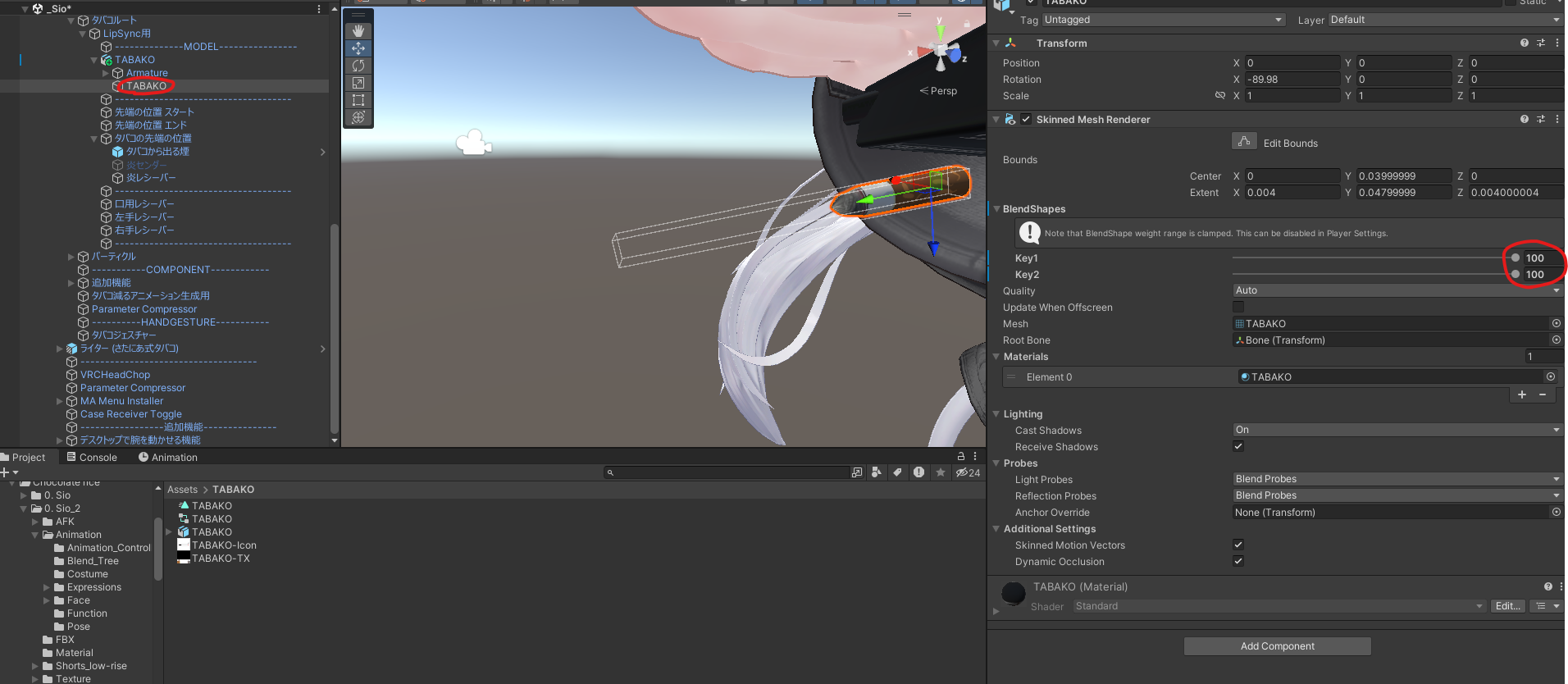
Select 先端の位置 エンド (Tip position: End) and move it to about where it is in the image, right around the edge of the burning part.
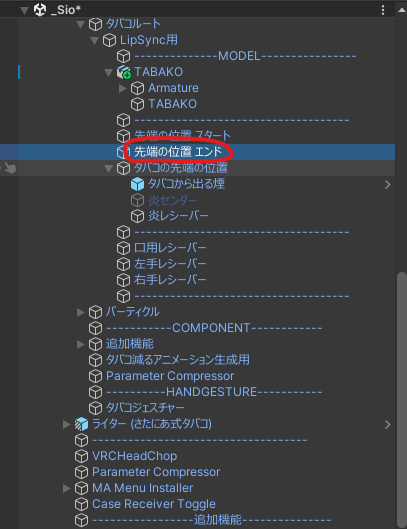
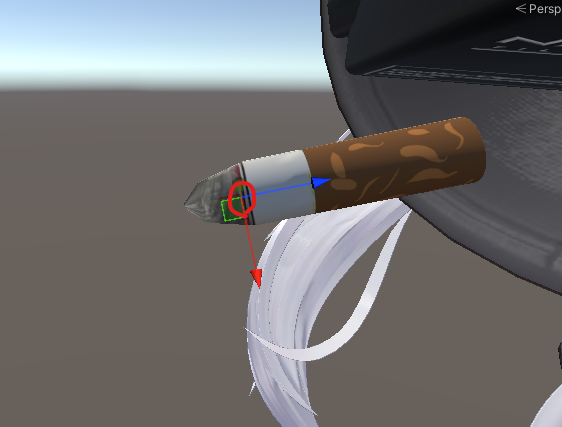
Set the blend shapes you changed (Key1 and Key2) back to 0.
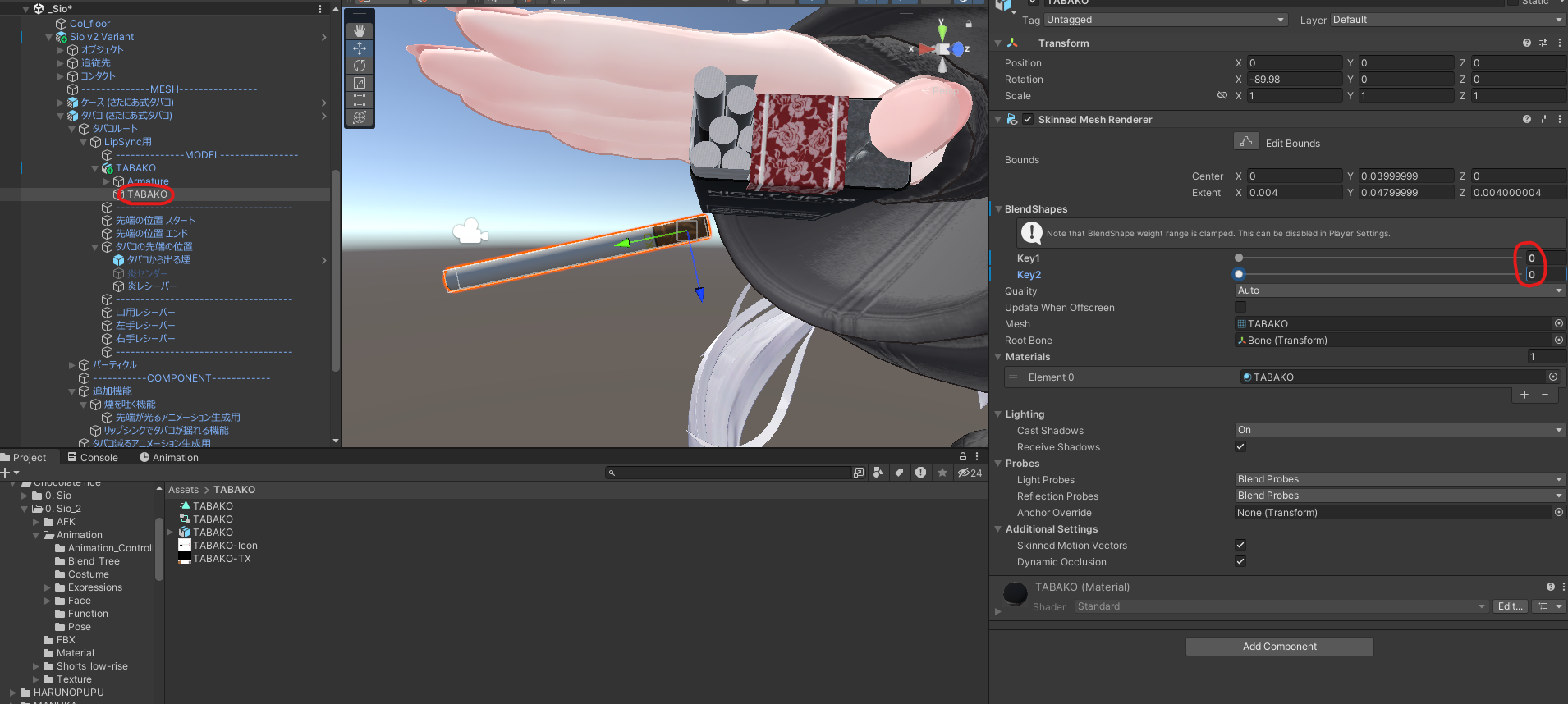
If you can see the cigarette getting shorter in-game or in the VRC emulator, you're done.
Making the tip glow when you exhale smoke
If the cigarette model has a lilToon emission texture set up, you can make the tip glow while you do the exhale motion.
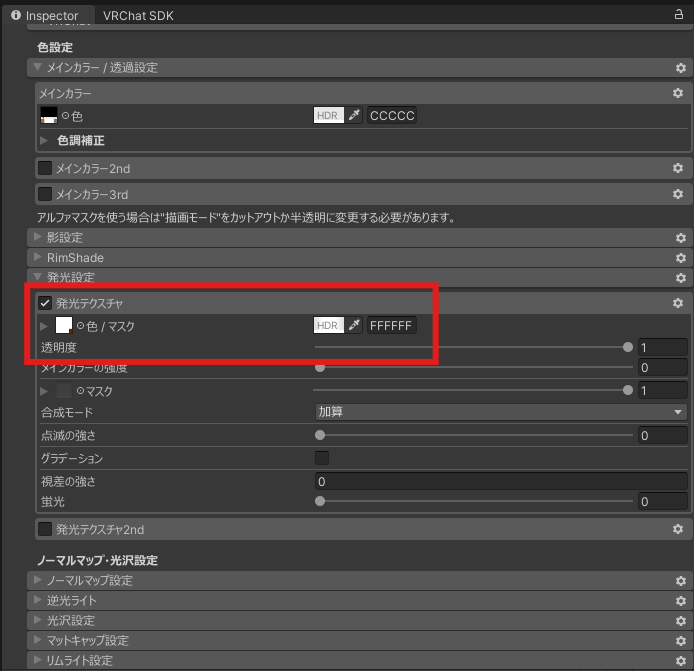
Select 先端が光るアニメーション生成用 (for generating the glowing-tip animation).
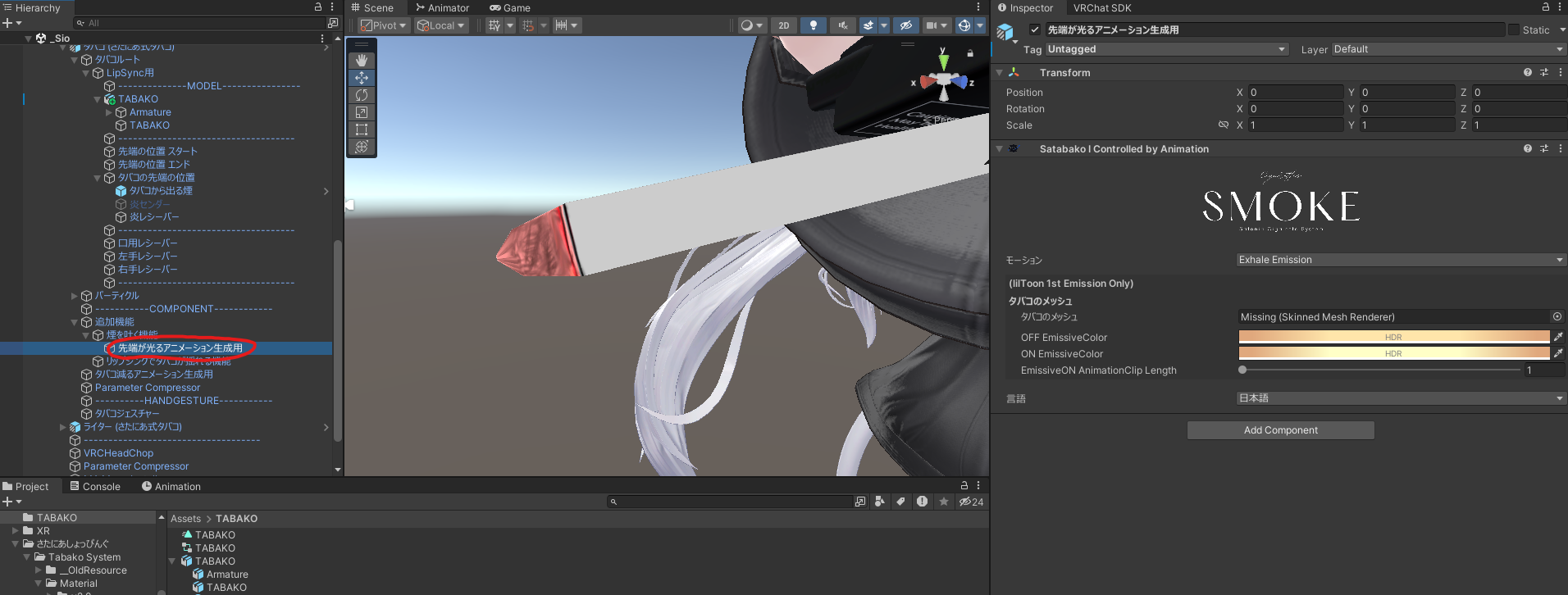
Put the cigarette model in タバコのメッシュ (Cigarette mesh).
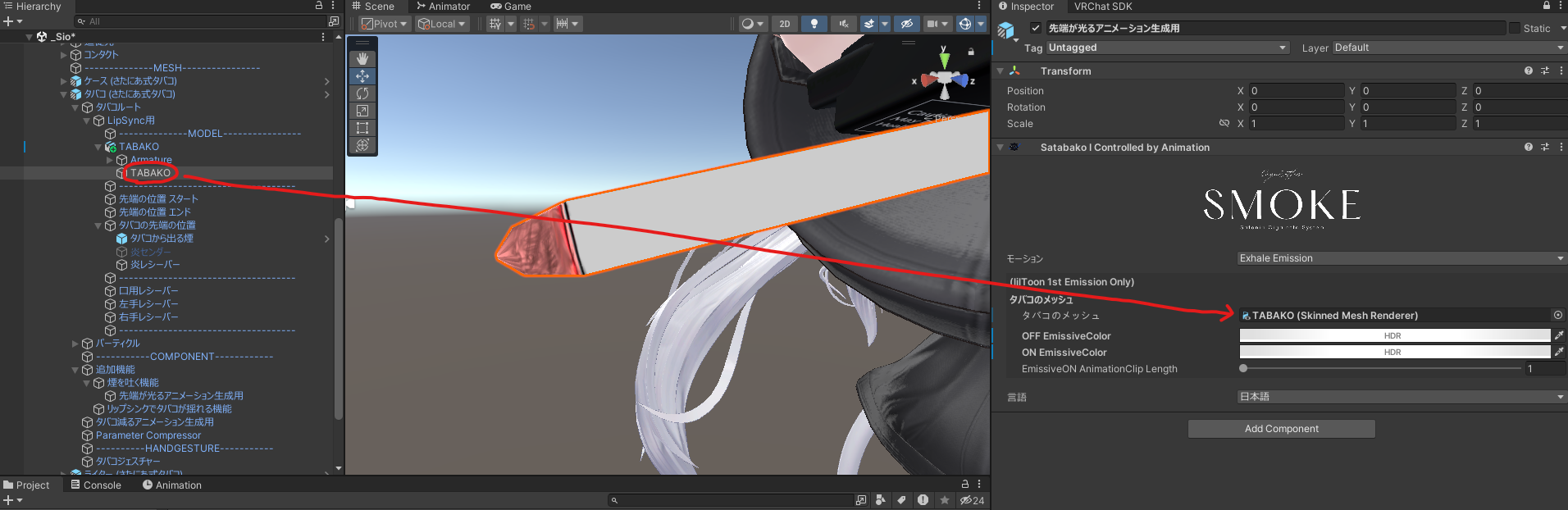
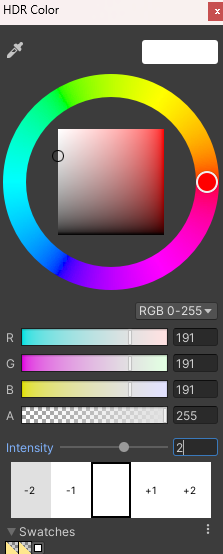
Set OFF EmissiveColor and ON EmissiveColor to match your model. OFF EmissiveColor is the tip color when you're not taking a drag, and ON EmissiveColor is the tip color while you're taking a drag.
For this guide I set ON EmissiveColor to the color and Intensity below.
Check it
If you can see the tip change color in-game or in the VRC emulator, you're done.
To check in the VRC emulator, set the parameter below to True and take a drag.

Turning it into a prefab
If you swapped out the prefab in Before you start, there's one more step to save it as a prefab.
Drag the prefab into the folder you want to save it in.
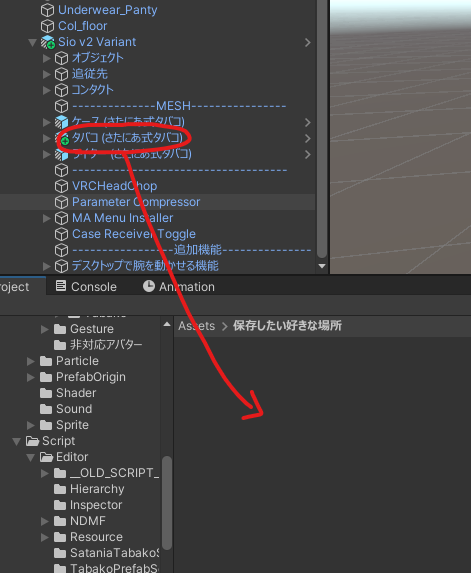
You'll see the dialog below. Pick Prefab Variant.

If it saved with "Variant" at the end of the name, you're done! Nice work.
If you're going to distribute or sell it, handing out this prefab makes setup easier for your users. (When you distribute it, don't include the original Satania Tabako files in the unitypackage.)
