Editing the lighter flame
Changing how the flame looks
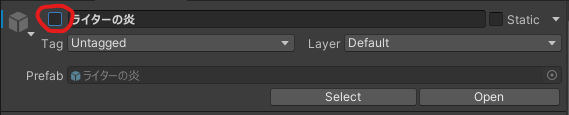
Select ライター (さたにあ式タバコ) (Lighter (Satania Tabako)) → ライタールート (Lighter Root) → 炎パーティクルの位置 (Flame particle position) → ライターの炎 (Lighter flame).
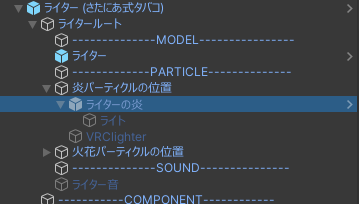
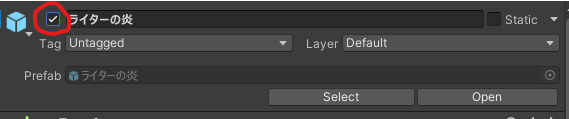
Turn it on temporarily so you can see what it looks like. Make sure to turn it back off when you're done. (If you don't, it'll show up for a split second when you change avatars.)
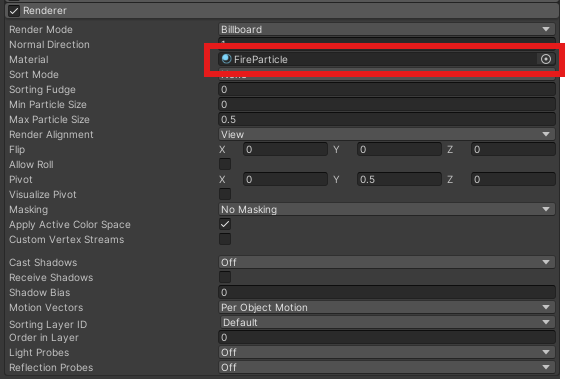
I won't go into the details of the particle system here, but if you want to edit the material, change the Material under Renderer.
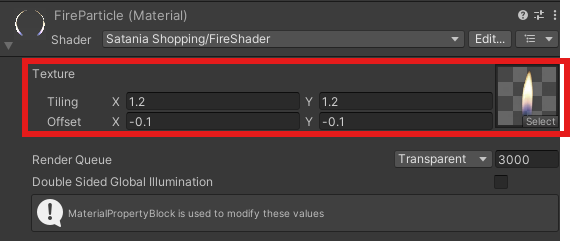
If you want to change the flame texture, change this texture on the material.
Satania Tabako uses a dedicated shader for the flame, which makes the texture look warped and wobbly. That's why Tiling and Offset are tweaked, so it doesn't spill out of bounds while it wobbles.
Turn it off when you're done.
Editing the lighter flame contact
With Satania Tabako, you can fine-tune the position and size of the lighter flame contact.
Usually, editing the contacts on the cigarette side is all you need, but if you have to edit the lighter flame contact, say for an unusual replacement model, here's how.
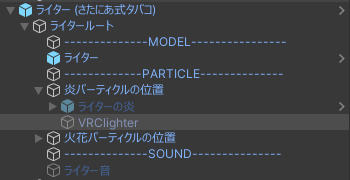
Select ライター (さたにあ式タバコ) → ライタールート → 炎パーティクルの位置 → VRClighter.
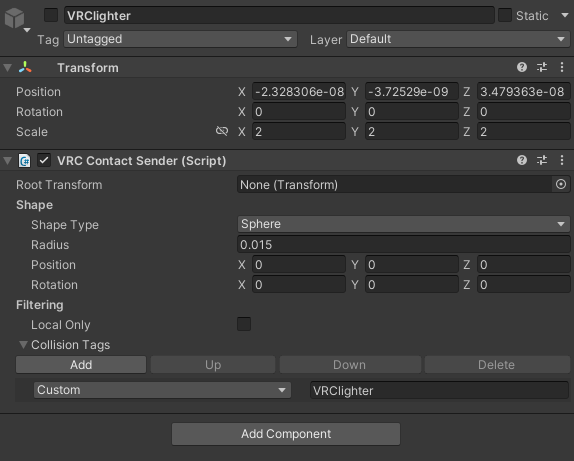
Position sets the position
Rotation sets the rotation
Radius sets the range
Those are the values you can change.